
After clicking on a piece in our catalog or opening a selection in the Practice app, you can add selections to your Favorites List. The Favorites List allows you to save and organize your frequently used music, either from the MakeMusic Cloud catalog or content you've created in Compose or Sight Reading Builder, for quick access from your Home page.
Jump to:
- To Add Pieces and Selections to Favorites From the Music Catalog
- To Add a Selection to Favorites From the Practice App
- Accessing and Managing Favorites
To Add Pieces and Selections to Favorites From the Music Catalog
1. Click on Music Catalog, type the name of a piece you are looking for into the field labeled Search Titles and More, and press Return.
2. Double-click on the piece in the search results you wish to add to your Favorites List.
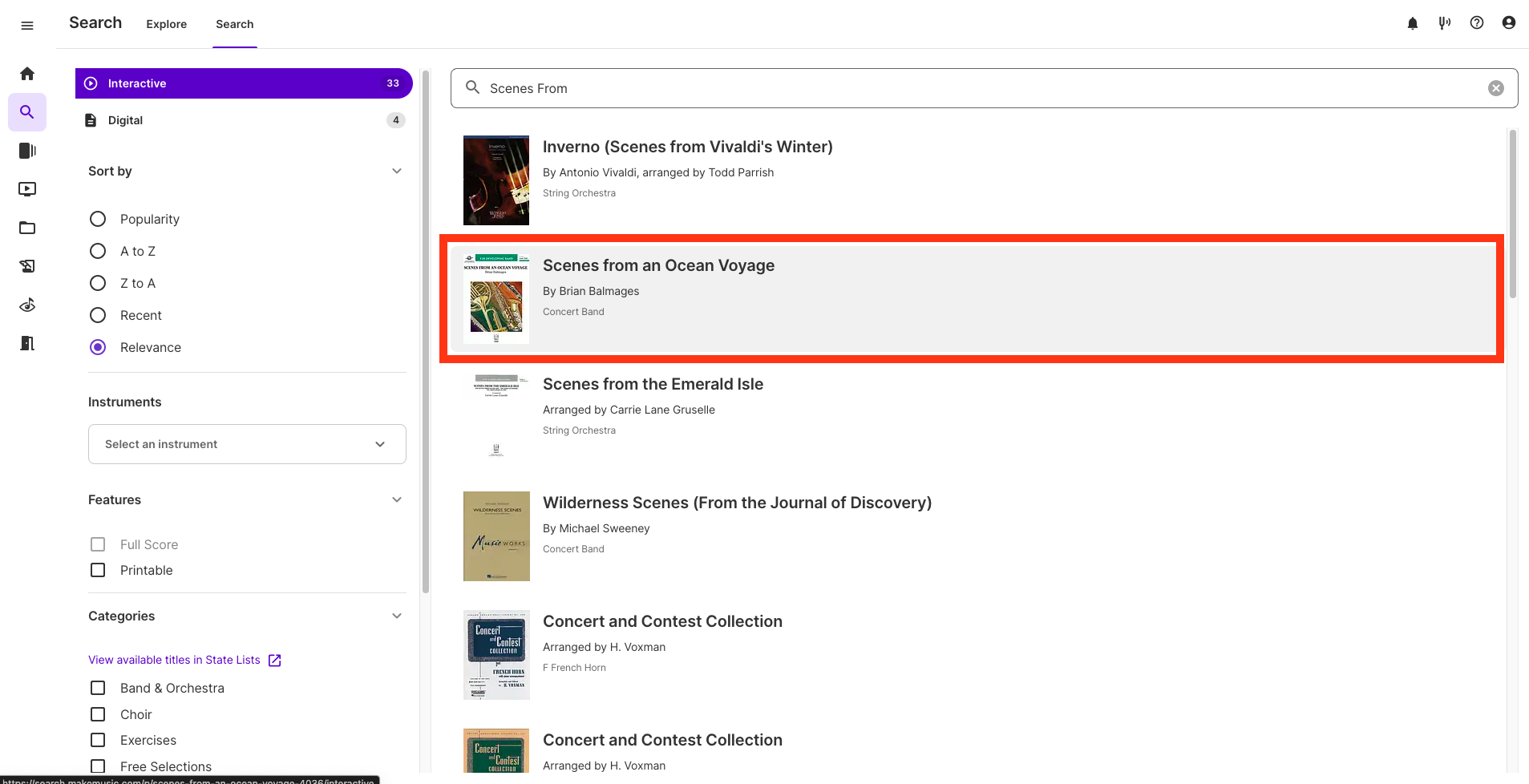
3. Click on the  icon next to the title of the piece to add all titles within a collection to your Favorites List.
4. You can undo this by clicking the same icon again, which will now look like this: 
5. Click the  icon next to individual titles of a collection to favorite specific titles. Click the icon again to undo this.
To Add a Selection to Favorites From the Practice App
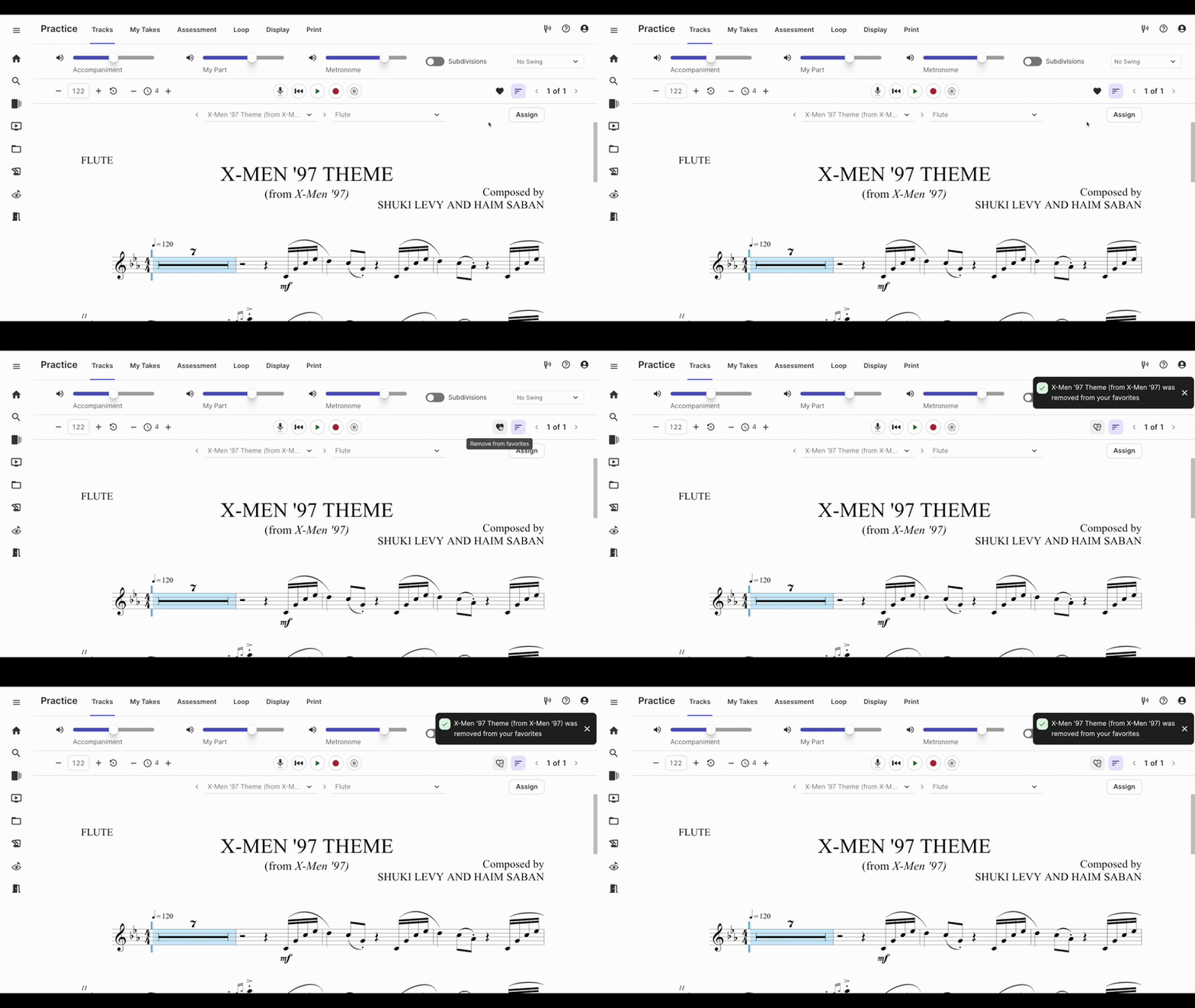
1. Open a selection in the Practice app.
2. Click the  icon to add the selection open in the Practice app to your Favorites List.
You can click on the icon again to remove it.
Accessing and Managing Favorites
1. To access your Favorites List, click on My Library in the left sidebar:
2. In the My Favorites section of My Library, you will see your list of Favorites. Icons will appear when you hover over a piece so you can open or remove a Favorite.
- Double-click on a title to open a selection.
-
Click-and-drag using the ⋮⋮ to reorder your Favorites List.
-
Use the 🖤 Heart button to remove a Favorite.
-
Use
to add a selection to a Playlist or remove from Favorites.
3. If you are a teacher, you'll also be able to assign selections from your Favorites List using the  icon.
icon.
4. My Favorites is not limited to only published content. You can also create your own content through Compose and Sight Reading Builder. These compositions will show up in the My Created Content folder to easily add to the Favorites List by clicking the icon.
5. Much like the published content, you can also add your created content to a playlist using the icon, and if you are a teacher, assign your created content using the icon.
0 Comments